How To Update All Your Social Networks Using Google Voice Actions #teamandroid

A while back, Lifehacker reminded us that Google Voice Actions can be used with any web service that supports SMS or Email. You can easily send SMS and Email messages by speaking into your phone, so any service that lets you interact via SMS and/or Email is fair game. Keep in mind that most of this also applies to Vlingo or any other voice command software.

Simple Scenario

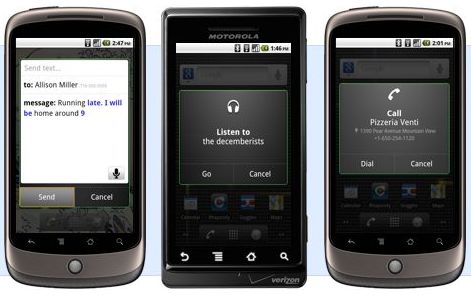
One primary example would be Twitter. By activating your mobile phone on the Twitter home page, you can send a tweet by texting it to 40404. Combined with Google Voice Actions, you would be able to say something like “SMS Twitter, That Rahsheen guy is some kind of awesome” and GV handles the rest. Of course, this assumes you have a contact in your address book named “Twitter” with a phone number of 40404.

Kicking It Up 10 Notches

If you want to be a Social Media Mogul, you will immediately recognize that this just isn’t powerful enough. There are other worlds than Twitter and you need to be able to update them all on the go using GV. Most of you already know where I’m going with this: Ping.fm. Both a blessing and a curse, Ping.fm is a powerful tool for updating all of your social networks simultaneously.

Once logged into Ping.fm (you do have an account, right?), navigate to ping.fm/sms and save the number in your contacts as something simple like “Ping.” You want to make sure you pick a name that will be easily recognized when you say it and “Ping” works pretty well. While you’re at it, go to ping.fm/email and add your unique posting address to this contact as well.

Now, you can long-press your search button, say what you want, and broadcast to everyone everywhere. As always, feel free to leave a comment here or hit me up on Twitter (@rahsheen) if you have questions, comments, or concerns.

Simple Examples:

  • “SMS Ping, I just ate a mango”
  • “Send Email to Ping, Flipmode is the greatest”

Lifehacker Post: Use Google Voice Actions with Any Web Service that Supports SMS or Email
Formula for Resizing Media to Fit Your Blog and Why You Need It

Even if the information on your blog is good, the sheer number of visible words can get overwhelming for some. It’s not really the word count that is the problem, it’s the wall-of-text that might turn off readers. The simplest way to break things up is to add images, video, and bullet lists. Adding media can be a pain, though. Here is a simple formula for finding the right width and height for embedding media on your blog or website.

Yo, dawg...

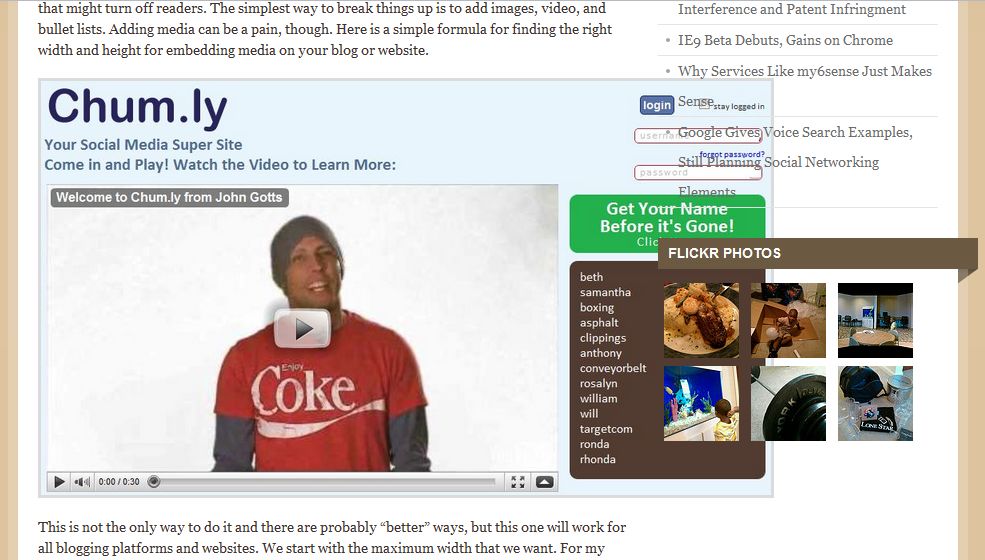
This is not the only way to do it and there are probably “better” ways, but this one will work for all blogging platforms and websites. We start with the maximum width that we want. For my blogs, it’s usually around 600px. This means that an image wider than 600px will overflow into my sidebar and make me look really unprofessional (see image above).

The Formula (Yes, it’s math)

The simple formula is based on proportions. Let’s say we have an image with a width w and a height h. We want to resize this image to a width of 605px, but we don’t know what the resulting height, x, will be we start with:

605/x = w/h

where x is the unknown height of the final image. Solving for x, we get:

x = 605*h/w

To use the formula for yourself, just replace “605” with the best width for your site, plug in the width and height for the media you’re trying to embed, and solve for x. Easy-peasy.

What to do with the results

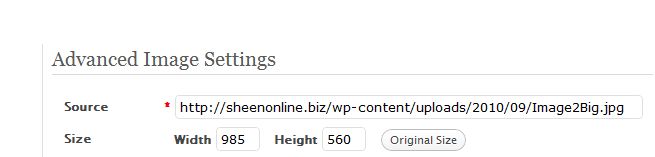
Now that you know what width and height you should resize your media to, what do you do with it? In WordPress, the procedure is to insert the image into your post first. Go ahead and choose Full Size. Click your image and click the small photo to open up its properties. On the Advanced Settings tab, you will see where you can manually specify the width and height for the image.

Why?

While you can use the percentages and presets available in WordPress to scale down your images, it’s always a guessing game. I found that I was wasting a lot of time switching between playing with the percentages and checking Preview mode. Time is money and prettying up a blog post is probably not where you want to waste your money.

Was this helpful? Subscribe to my feed. Don’t forget to add your take in the comments.

Why Services Like my6sense Just Makes Sense

This isn’t really an in-depth review of my6sense or even a post all about it, but I’m going to talk more about the concept of my6sense and why it and services like it prove valuable for many users.

The standard view of content consumption is that you go from beginning to end. You consume everything in between. This works fine for old media, but not so much online.

Reading a single blog post might be cool, but reading an entire blog could be a challenge. Reading all of the blogs you’re interested in is near impossible. So is reading your entire Twitter stream. Of course, this assumes you follow or subscribe to a decent number of sources.

One of the major mistakes people make when getting into social media is that they still want to read everything. They feel incomplete if they miss a single tweet, post, or status update. This is a recipe for madness. Twitter alone is pumping out 90 million tweets each day, 25% of which contain links. That’s a lot of content to dig through and we haven’t even got to Facebook or blogs yet.

The solution is to have someone (or something) to filter all that content for you and highlight those items that you probably want to read. Even as a blogger, I find my RSS subscriptions overwhelming and mostly not useful.

I find myself leaning more towards sites like Techmeme and Regator on a daily basis. Since m6sense (finally) became available on Android, I’ve been using it on a regular basis as well.

Why should I bother digging through the muck for pearls when there are teams of people already doing it and handing me the fruits of their labor?!

Even Twitter, a site built on users over-sharing the most boring bits of their lives, has moved to a content consumption model. They no longer care what you’re doing. They’ve realized that, outside of marketers, narcissists, and geeks, nobody understands why they should tweet. They’ve adjusted the site to focus on digging into the content already created and recommending people for you to follow.

Of course, their comes a time when these filters run dry. They’ve handed you all the pearls for the moment and now you’re bored. This is when you dig into the feeds yourself and take a closer look at some of those discarded bits. Maybe you have a (very small) list of favorite blogs by smart people. Until then, stop trying to read everything.

What tips, tricks, or tools do you use to read news?

Check out my6sense, Techmeme, and Regator. While you’re at it, read my post on the new Twitter.

4000 children die each day due to illnesses from lack of clean drinking water. Help eradicate this problem.

WaterAid America & megree are working together to bring awareness to the impact of lack of clean water has globally.
4000 children die each day due to illnesses from lack of clean drinking water.

National Geographic published a special edition in April 2010 on water.

Tina Rosenberg a Pulitzer Prize winning journalist and Lynn Johnson an award winning photo journalist wrote the article “The Burden of Thirst.”

megree has partnered with bloggersunite to help put an end to these unnecessary losses to human life.

To help raise money and build 5 clean water wells, Megree is featuring the photos from National Geographic’s “Burden of Thirst article” for sale to raise funds for WaterAid’s work.

These photos are available exclusively online with megree until October. On September 23rd, photo journalist Lynn Johnson will host a special evening at the Soho Gallery in New York City to raise funds and awareness for WaterAid. Preview the photos exclusively on megree and join this cause by visiting www.megree.com/e/3

If you are unable to attend and would like to help, please make a small donation now and add the widget and a post, if you can to your blog.