Just a week before Level 3 announced a multi-year deal to support Netflix’s booming streaming video business, Comcast introduced a new recurring fee to “transmit Internet online movies and other content to Comcast’s customers who request such content.”
Level 3, which helps to deliver Netflix’s streaming movies, said Comcast had effectively erected a tollbooth that “threatens the open Internet,” and indicated that it would seek government intervention. Comcast quickly denied that the clash had anything to do with network neutrality, instead calling it “a simple commercial dispute.”
Comcast has challenged these statements by saying that “the type of traffic distributed by Level 3 was irrelevant.” Comcast says they had a “peering agreement” with Level 3 to share traffic fairly evenly, but Level 3 is sharply increasing their usage and don’t want to pay for it. Comcast says that “Level 3 is trying to change the rules of the game.”
Comcast is in the middle of closing up an acquisition of NBC, which is in the final stages of review by the F.C.C. and the Justice Department. Some say that this scuffle with Level 3 and netflix america is a red flag and shows that Comcast will discriminate against a competitor’s content if it can. Comcast insists this has nothing to do with net neutrality, calling it “a simple commercial dispute.”
Even though I love my HTC Evo, I still haven’t settled on a solution for listening to music or keeping my desktop music in sync with my mobile. Mostly, I listen to Pandora, which doesn’t cure my ills when I have an ear worm.
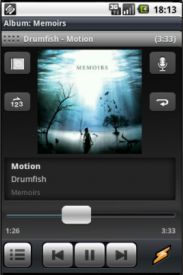
Enter Winamp. Since I have no real ties to iTunes (I’ve actually been trying to get rid of it), I think I’m going to install Winamp beta for desktop (required) and try out the beta app for Android.
After you have the desktop version installed, you can grab the beta by scanning the QR Code below with your phone or clicking the link below if you’re viewing this on your device.
All children, except one, grow up. They soon know that they will grow up, and the way Wendy knew was this. One day when she was two years old she was playing in a garden, and she plucked another flower and ran with it to her mother. I suppose she must have looked rather delightful, for Mrs. Darling put her hand to her heart and cried, “Oh, why can’t you remain like this for ever!” This was all that passed between them on the subject, but henceforth Wendy knew that she must grow up. You always know after you are two. Two is the beginning of the end.
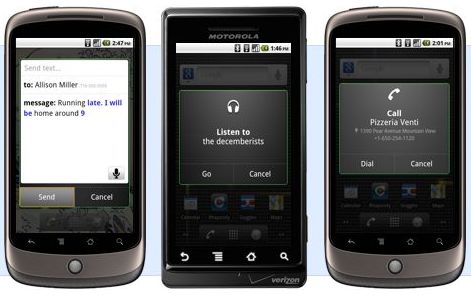
A while back, Lifehacker reminded us that Google Voice Actions can be used with any web service that supports SMS or Email. You can easily send SMS and Email messages by speaking into your phone, so any service that lets you interact via SMS and/or Email is fair game. Keep in mind that most of this also applies to Vlingo or any other voice command software.
Simple Scenario
One primary example would be Twitter. By activating your mobile phone on the Twitter home page, you can send a tweet by texting it to 40404. Combined with Google Voice Actions, you would be able to say something like “SMS Twitter, That Rahsheen guy is some kind of awesome” and GV handles the rest. Of course, this assumes you have a contact in your address book named “Twitter” with a phone number of 40404.
Kicking It Up 10 Notches
If you want to be a Social Media Mogul, you will immediately recognize that this just isn’t powerful enough. There are other worlds than Twitter and you need to be able to update them all on the go using GV. Most of you already know where I’m going with this: Ping.fm. Both a blessing and a curse, Ping.fm is a powerful tool for updating all of your social networks simultaneously.
Once logged into Ping.fm (you do have an account, right?), navigate to ping.fm/sms and save the number in your contacts as something simple like “Ping.” You want to make sure you pick a name that will be easily recognized when you say it and “Ping” works pretty well. While you’re at it, go to ping.fm/email and add your unique posting address to this contact as well.
Now, you can long-press your search button, say what you want, and broadcast to everyone everywhere. As always, feel free to leave a comment here or hit me up on Twitter (@rahsheen) if you have questions, comments, or concerns.
Even if the information on your blog is good, the sheer number of visible words can get overwhelming for some. It’s not really the word count that is the problem, it’s the wall-of-text that might turn off readers. The simplest way to break things up is to add images, video, and bullet lists. Adding media can be a pain, though. Here is a simple formula for finding the right width and height for embedding media on your blog or website.
Yo, dawg...
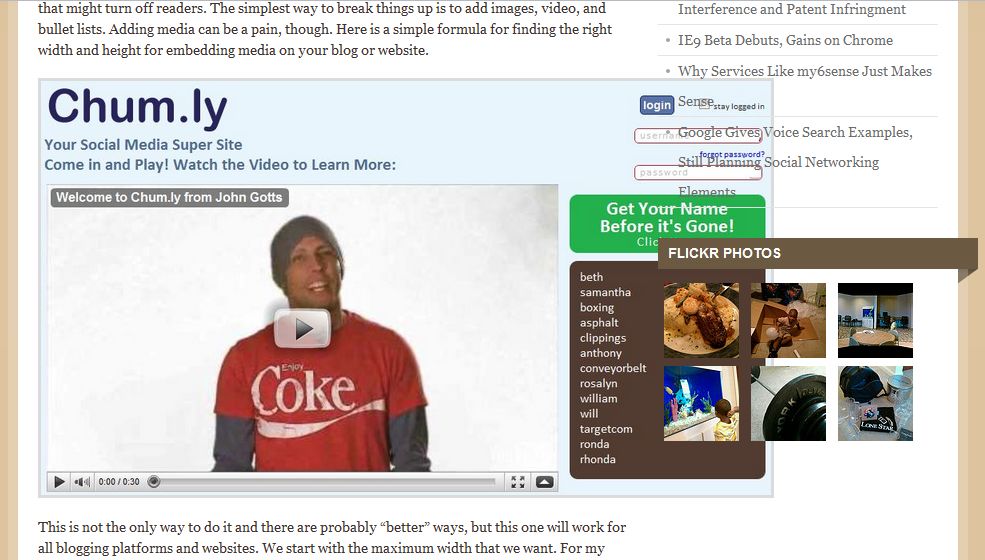
This is not the only way to do it and there are probably “better” ways, but this one will work for all blogging platforms and websites. We start with the maximum width that we want. For my blogs, it’s usually around 600px. This means that an image wider than 600px will overflow into my sidebar and make me look really unprofessional (see image above).
The Formula (Yes, it’s math)
The simple formula is based on proportions. Let’s say we have an image with a width w and a height h. We want to resize this image to a width of 605px, but we don’t know what the resulting height, x, will be we start with:
605/x = w/h
where x is the unknown height of the final image. Solving for x, we get:
x = 605*h/w
To use the formula for yourself, just replace “605” with the best width for your site, plug in the width and height for the media you’re trying to embed, and solve for x. Easy-peasy.
What to do with the results
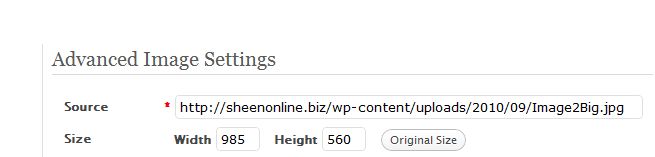
Now that you know what width and height you should resize your media to, what do you do with it? In WordPress, the procedure is to insert the image into your post first. Go ahead and choose Full Size. Click your image and click the small photo to open up its properties. On the Advanced Settings tab, you will see where you can manually specify the width and height for the image.
Why?
While you can use the percentages and presets available in WordPress to scale down your images, it’s always a guessing game. I found that I was wasting a lot of time switching between playing with the percentages and checking Preview mode. Time is money and prettying up a blog post is probably not where you want to waste your money.
Was this helpful? Subscribe to my feed. Don’t forget to add your take in the comments.
This isn’t really an in-depth review of my6sense or even a post all about it, but I’m going to talk more about the concept of my6sense and why it and services like it prove valuable for many users.
The standard view of content consumption is that you go from beginning to end. You consume everything in between. This works fine for old media, but not so much online.
Reading a single blog post might be cool, but reading an entire blog could be a challenge. Reading all of the blogs you’re interested in is near impossible. So is reading your entire Twitter stream. Of course, this assumes you follow or subscribe to a decent number of sources.
One of the major mistakes people make when getting into social media is that they still want to read everything. They feel incomplete if they miss a single tweet, post, or status update. This is a recipe for madness. Twitter alone is pumping out 90 million tweets each day, 25% of which contain links. That’s a lot of content to dig through and we haven’t even got to Facebook or blogs yet.
The solution is to have someone (or something) to filter all that content for you and highlight those items that you probably want to read. Even as a blogger, I find my RSS subscriptions overwhelming and mostly not useful.
I find myself leaning more towards sites like Techmeme and Regator on a daily basis. Since m6sense (finally) became available on Android, I’ve been using it on a regular basis as well.
Why should I bother digging through the muck for pearls when there are teams of people already doing it and handing me the fruits of their labor?!
Even Twitter, a site built on users over-sharing the most boring bits of their lives, has moved to a content consumption model. They no longer care what you’re doing. They’ve realized that, outside of marketers, narcissists, and geeks, nobody understands why they should tweet. They’ve adjusted the site to focus on digging into the content already created and recommending people for you to follow.
Of course, their comes a time when these filters run dry. They’ve handed you all the pearls for the moment and now you’re bored. This is when you dig into the feeds yourself and take a closer look at some of those discarded bits. Maybe you have a (very small) list of favorite blogs by smart people. Until then, stop trying to read everything.
What tips, tricks, or tools do you use to read news?
WaterAid America & megree are working together to bring awareness to the impact of lack of clean water has globally.
4000 children die each day due to illnesses from lack of clean drinking water.
National Geographic published a special edition in April 2010 on water.
Tina Rosenberg a Pulitzer Prize winning journalist and Lynn Johnson an award winning photo journalist wrote the article “The Burden of Thirst.”
megree has partnered with bloggersunite to help put an end to these unnecessary losses to human life.
To help raise money and build 5 clean water wells, Megree is featuring the photos from National Geographic’s “Burden of Thirst article” for sale to raise funds for WaterAid’s work.
These photos are available exclusively online with megree until October. On September 23rd, photo journalist Lynn Johnson will host a special evening at the Soho Gallery in New York City to raise funds and awareness for WaterAid. Preview the photos exclusively on megree and join this cause by visiting www.megree.com/e/3
If you are unable to attend and would like to help, please make a small donation now and add the widget and a post, if you can to your blog.
TweetDeck for Android is awesome so far. Not only is it extremely nice to look at, but it carries much of the burden of your social media life. It covers Twitter (and multiple Twitter accounts), Facebook, Google Buzz, and Foursquare. It’s one thing to say that an application covers multiple services and completely another when that application does a good job of it. TweetDeck, even in it’s beta state, handles everything surprisingly well.
Many things that you will need to get set up are not immediately clear. One major stumbling block for me was the lack of a Settings menu. It looks like TweetDeck opts to integrate the settings into the user interface.
Adding Accounts
If you already have a TweetDeck account, sign in with that and it pulls in all your other accounts.
If not, go ahead and add your Twitter account. It doesn’t matter if you hate Twitter or don’t even want to use Twitter, you can’t activate TweetDeck for Android without a Twitter account. Not sure why this is.
Once you’re done adding accounts… Uh… Hit Done.
One thing I didn’t like about the setup process is that I had to specify usernames and passwords for Foursquare and Twitter. Facebook and Buzz pop-up login windows to those sites and do seem to do some type of OAuth action.
Basics of Columns
This section is of utmost importance. Your columns are your primary method of interaction and tie into your notifications settings. Initially, you have 3 columns:
Home – This is everything from every service you’ve plugged into TweetDeck. The whole shebang.
Me – These are the posts from all your services that have something to do with you: Twitter @mentions, comments on Facebook items, etc.
Direct Messages – These are private messages to you from Twitter. If private messages from other services are supported, I haven’t seen any.
Each column has the relevant messages from all of your services. Instead of giving each service its own column, they’re blended together. This is a blessing and a curse. If you follow a decent number of people on Twitter, your Home stream will pretty much be useless because Twitter will bury everything else.
Hopefully, an option to create separate columns for each service is coming.
Managing Columns
Until then, you can simply use Twitter lists. I was already using Twitter lists to keep an eye on a few interesting folks, but didn’t know how to manage lists in TweetDeck for Android until @jbrotherlove gave me the heads up and directed me to the tutorial video embedded below.
If you look in Manage Columns, you won’t see an option to add anything. The only actions you can do here are to delete columns.
To add a column, you need to first find/create a column you want to add. This could be based on a search, someone’s Twitter stream, or a list. For instance, to add a column for one of my own lists, I did the following:
Opened a tweet with my name in it, then clicked my name. You could also just click the Contacts button (looks like a grid) and search for your Twitter username.
Scroll down to the bottom of your profile and you’ll see the lists you’ve created. Pick one.
You should see a huge button across the bottom of the screen that says “Add Column.”
Managing Notifications
TweetDeck for Android has the most basic of notifications systems. Each column will notify you when it has new tweets in it. This drove me crazy at first because I don’t need notifications on my Home feed. If you go back to Manage Columns from the main menu, you will see that each column you’ve created has an On/Off button. This button toggles notifications.
Are you using TweetDeck for Android? Sign up for the beta and share your thoughts in the comments.
The Chum.ly team is staying on the grind and actively responding to feedback from their growing community. This has resulted in a complete redesign of the user interface, implementation of OAuth, and an upcoming iPhone application. I have to say, the UI update is a big difference from what they were working with a couple of weeks ago and OAuth makes it that much easier to jump in and see what Chum.ly can do.
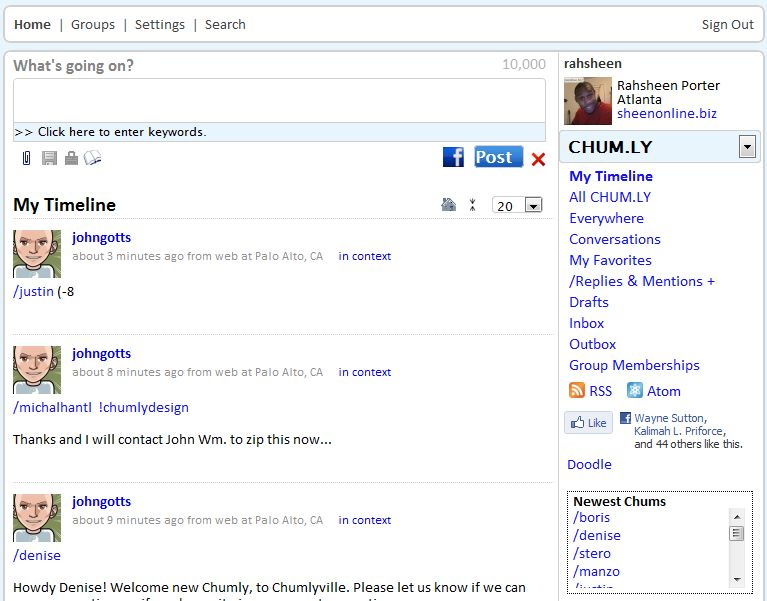
Here is Chum.ly before the redesign:
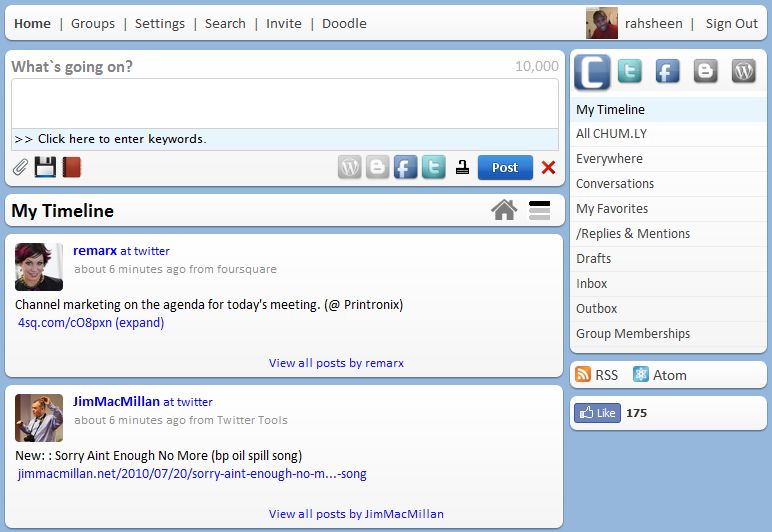
And here is the new interface:
The new interface is a lot easier on the eyes, but also makes more efficient use of space and is a little more intuitive for new users.
OAuth means you don’t have to give up your username and password for Buzz, Twitter, or Facebook. Just click a button and you authorize Chum.ly from the original site. This is a much more secure option and I applaud Chum.ly for getting it done about a day after my original post on Chum.ly.
Chum.ly no longer depends on third-party services like TweetPhoto, TwitVid, and TweetAudio to do rich media. They have moved to a simpler system where the handle media directly, eliminating the need for Chum.ly users to have a Twitter account. This is an important step in changing the perception from a Twitter or Facebook interface into a messaging platform in its own right.
Next up for Chum.ly is better integration of your Facebook account, much like what they’ve done with Twitter. There is also an iPhone app coming fast over the horizon, so keep an eye out for that. Chum.ly is definitely an advanced tool with a lot of power under the hood, but you really have to try it out to see what it can really do.
BET is launching a new award category that focuses on the online and mobile power. It will debut at this year’s BET Awards on Sunday, June 27th. In a two-week promotion on 106 & Park followers of Trey Songz, Chris Brown, Justin Beiber, and Nicki Minaj will compete to push their artist to the top using the AOL Lifestream social aggregator.
“Today’s successful artists don’t just make hits, they create movements where people can participate and connect with them in ways like never before. This award pays homage to the digitally engaged fans, and we’re excited to partner with AOL to amplify our audience’s voice at the BET AWARDS ’10. Over the past year, BET has experienced tremendous growth across online and mobile platforms and this partnership fits perfectly with our strategy to be right at the pulse of entertainment culture and also drive it.” -Denmark West, President of Digital at BET Networks
Fans will be able to leverage the power of AOL Lifestream to cast their votes by posting updates related to their favorite artists across sites like Facebook, Twitter, Digg, YouTube, and FourSquare. With one single update, they can populate their entire online social world.
Viewers will be able to watch 106 & Park weekdays at 6:00pm to get information on the daily challenge. They will also be able to check the status of their artist of choice. Challenges will be centered around BET.com and BET mobile, while also including activities on other networks like Facebook and Twitter. Wherever the challenge is located, you can always see what’s going on at lifestream.aol.com/bet, which will collect everything in one place. AOL will also promote the BET Awards ’10 across their various online portals like Black Voices, AOL Music, PopEater and the AOL homepage.
These artists were chosen based on their existing rabid fan bases and star power in the industry. We have never seen an award category that is so directly tied to fan’s behavior online. Artists are usually grateful for their fan base, but the Fandemonium category will make it abundantly clear which artists have the most clout in new media. It is good to see an entity that focuses on the black community and black culture integrate old media and new media in this way.