Jimmy Fallon Plugs Odd Future with QR Code [VIDEO]

This is a really awesome use of QR Codes and got me thinking about how versatile they are.

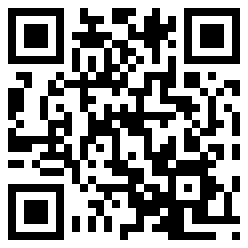
Fallon had Tyler, The Creator and Hodgy Beats of Odd Future on Late Night with Jimmy Fallon on Wednesday. Before the performance, Fallon held up an LP-size QR code that, when viewed with the proper app, led viewers to oddfuture.com, which features a video of Tyler The Creator’s “Yonkers.”

What struck me about this is the fact that you don’t have to play a video to get detailed info on the band. Fallon didn’t even have to speak if he didn’t want to, just hold up the QR Code and smile. Viewers at home can easily scan the code and jump to the band’s website.

This highlights the ease with which QR Codes can quickly provide context and information in a multitude of situations. Imagine a concert where the band displays a QR Code during each number to share background on each song’s origin, or a street performer using a QR Code to share their background story without missing a beat.

via Jimmy Fallon Plugs Band With QR Code [VIDEO]

Klout for Chrome Adds Influence Scores to Twitter

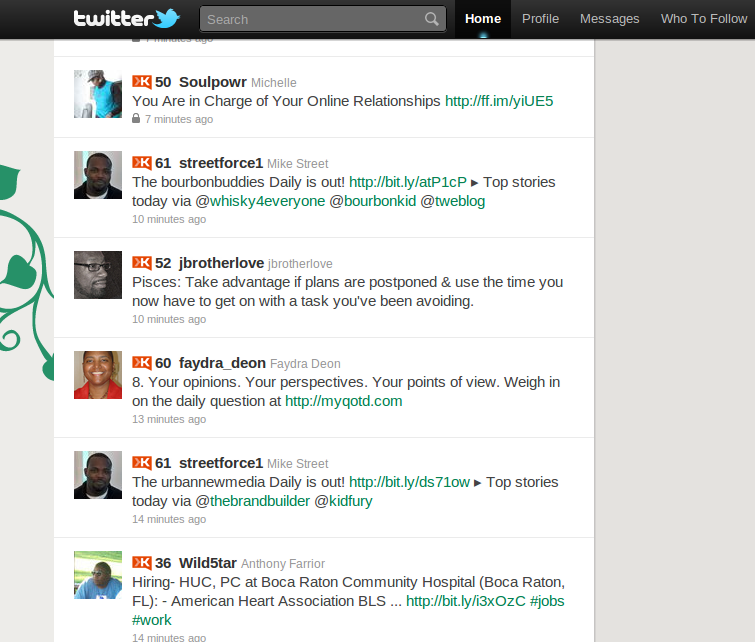
Klout has a new extension for the Google Chrome web browser that adds influence scores to your Twitter.com interface. This means that you can see, at a glance, who the most (or least) influential people are that you are following.

While measuring influence has been a controversial topic in social media and the social web, it’s still something worth looking into when it comes to making online connections. It can also help you figure out who you might want to collab with in getting the word out about your cause or business.

What would be more useful is for some service to create Twitter lists based on Klout score. For now, you’ll have to do that on your own.

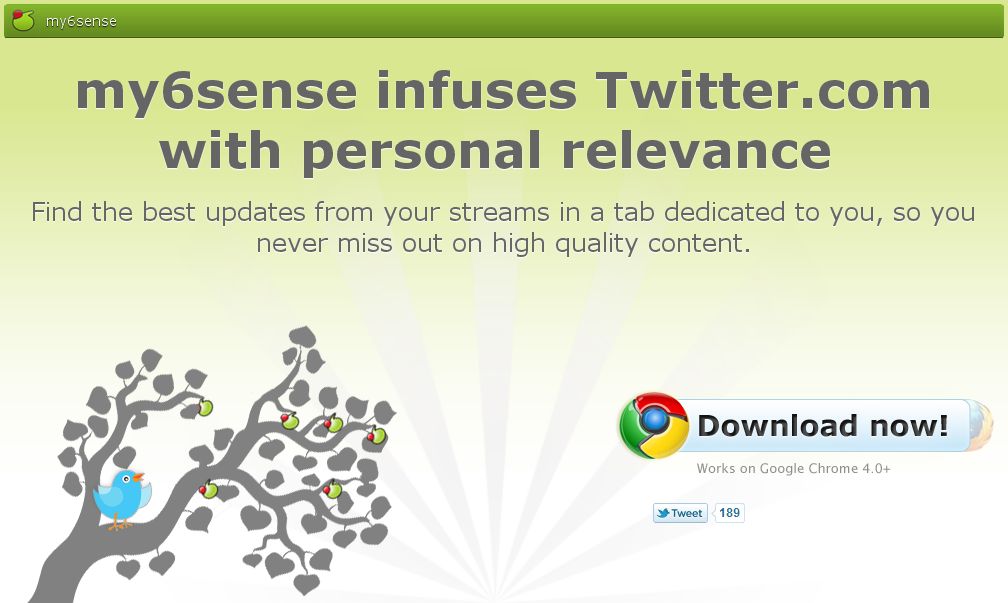
While you’re installing the Klout extension, be sure to check out the my6sense chrome extension as well. Both will help you figure out who to pay attention to and who you’re actually most interested in.

What do you think about sorting people based on influence?

via The Official Klout Blog.

Why I Decided Against Apple From Jump

It wasn’t so long ago (ok, it was a long time ago) that I was a hardcore Linux haxz0r spending 24 hrs/day on IRC with a bunch of other geeks talking about coding and other random geekery. I remember Slashdot was king and Gmail still needed an invite (which I had). I used Linux exclusively up until a few years ago, even through the software requirements at Georgia Tech. Obviously, I have a different mindset than most consumers and even other so-called geeks.

I’ll start with my Sidekick II. I loved that phone to death. I could text on it like a madman, annoying the heck out of my soon-to-be gf, and even had this slick one-handed-flip-in-the-air move I used to do to open it up. I remember wanting to develop software for it, but the process being difficult. I also remember wanting to hack it somehow, but that was also a challenge.

Next thing I know, I’m on Windows Mobile and me and soon-to-be are an item. I ran through a T-Mobile MDA and two Dashes. It was Windows, but it was flexible. Things weren’t locked down like the Sidekick and I learned a lot of random hackery, tips, and tricks from sites like XDA Developers.

Somewhere in this process, Mac OS became *nix and the iPod/iPhone came along. They were in my peripherals because I already knew what they entailed: Lock In. I’d already experienced the disappointment of having an awesome piece of hardware with severe software limitations and I wasn’t going back. Hell, you can’t even run iTunes on Linux.

These days, I do run Windows, but that’s because I’ve become lazy. The computer I used primarily for years is still operational, but I rarely power it on (abit bp6 with dual celeron 366mhz processors oc’d to 550….it’s very loud). 99% of the time, I’m using my trusty Chrome Web Browser to get stuff done, so the underlying OS has become secondary.

My mobile device of choice is an Android and gf has become wifey. The Evo 4G, to be exact. What a happy coincidence that the OS I grew up with ends up running my mobile device about a decade later. I can pretty much do whatever the hell I want with this thing. If there is something it doesn’t do, I can *make* it do so or find someone else who’s already done the work.

Things are not so with iPhone and iOS. I ran into someone who was switching from Android to a Verizon iPhone the other day. He’s a horrible speller and typist (possibly illiterate) and relied heavily on Google Voice Actions to get things done efficiently. Of course, there is no such thing on iOS because Steve Jobs won’t let you install alternate keyboards or otherwise duplicate any of the default Apple applications. Why? Who the hell knows.

More recently, Apple has instituted a subscription plan for apps residing within its App Store. Basically, Apple wants a 30% cut of any revenue generated when customers sign up for a subscription service like Netflix or Hulu Plus via an iOS app. Apple has even blocked these service providers from offering incentives for customers to sign-up with them directly, saying they must offer the same deals to customers via the app that they offer on their sites. Seems a little overreaching and greedy to me.

Oh, so you want to ditch Apple? Yeah, good luck with that. It’s like breaking up a long-term relationship with a needy person. While you’re trying to move on, they keep popping up. Also, you realize you’ve come away with only a fraction of your movies and music.

Am I an Apple hater? Not really. I think they offer an experience that many consumers need. They make quality hardware and software. While I’ve decided to make a lifetime commitment to my wife, I’m not ready to be tied up technologically and financially to a company. Me and Android are still having fun and feeling each other out. Apple seems more intent on getting access to my bank accounts, telling me how to dress, and redecorating my bachelor pad.

my6sense Still Makes Sense

Last year I talked about why services like my6sense make sense. Nothing has really changed except that my6sense has gotten bigger and badder than before. I still use the Android app on a regular basis to keep up with what’s going on. It automatically figures out what I want to read based on my behavior using a technology called Digital Intuition.

When you create an account with my6sense through Twitter or one of our mobile apps, we start building your personal preference model, your ‘Digital Intuition’. Constructing an accurate graph of your preferences & interests takes time, and your ‘Digital Intuition’ will only start growing after a few interactions with your content. So please be patient – it may take a while to kick in, but we assure you that once it does, the results will be jaw-dropping.

With my6sense, I see a lot of content about Android, social media, and technology with a smattering of random postings from people I find interesting. The Android app incorporates a number of RSS feeds and sites as well as Twitter and Facebook.

Of course, when Louis Gray hit me up to try out the my6sense Chrome extension for Twitter beta, I was pretty excited. Twitter is probably the most difficult service to keep up with because I don’t have enough attention to pay to all the people I actually find interesting.

I’m currently following over 3,000 people and my6sense uses their magic Digital Intuition algorithm to dig through them all and pick out the updates I would most like to see. Rather than creating yet another Twitter List to help me keep up, I just let my6sense do the hard work.

There are currently apps for Android, iPhone, Twitter.com in Chrome, and a Firefox add-on on the way. One thing I do wonder is if the my6sense team could implement their Twitter interface as a Twitter List. This way, any Twitter user on just about any Twitter client would be supported.

In any case, the web should be about what you want to see. With many of us interacting in so many different places and sharing so much of ourselves, it’s about time a service started using that information to do something more interesting and useful than serve ads.

Jailbreak iOS 4.2.1 Untethered with Latest GreenPois0n


Chronic Dev Team has released another iOS jailbreak. This one is for iOS 4.2.1 and is untethered, meaning you will be able to reboot your phone without connecting it to your computer first. Right now, this only works on Mac OSX.

If you are looking for a carrier unlock, this is not what you want. Make sure you hack STOCK 4.2.1 on your device before you bother trying this. It looks like the servers are crowded at the moment, so you might also want to wait a while before trying this out. I’ve also heard sprinkling the blood of a freshly killed chicken over your device will improve your chances.

Chronic Dev Team has finally released the much awaited GreenPois0n RC5 which brings full untethered iOS 4.2.1 jailbreak for all iOS devices. Unlike Redsn0w 0.9.7, GreenPois0n RC5 doesn’t require you to have SHSH blobs of 4.2b3 saved on Cydia. You can jailbreak any iOS device out of the box on iOS 4.2.1 using this latest version of GreenPois0n.

via Redmond Pie

Android and iPhone Apps for Bodybuilding.com

If you’re a bodybuilder or life weights as part of your training at all, you’ve probably run into BodyBuilding.com. It has a wealth of information related to lifting weights, nutrition, fitness, and more. They have a community of about 2 million and provide methods for tracking every aspect of your training journey. Now, you can install the Bodybuilding.com app on your mobile device to make reaching your goals even easier.

With the FREE Bodybuilding.com app, iPhone, iPod Touch, iPad, and Android users have constant access to the world’s largest online health and fitness network (BodySpace) and complete, detailed instruction on all your favorite exercises.

Its BodySpace in the palm of your hand. Its a community of fitness support, on demand. Stay connected, motivated, and inspired with non-stop access to your profile

It’s a great compliment to the JEFit application that I use during my workouts and provides nice graphs and charts for tracking your body and lifting stats. Also it helped me to find this site massgainsource.com/know-nandrolone-steroid/, which now I use like my personal instruction in using bodybuilding supplement.

Of course, if you join or are already a member, make sure you add me: http://bodyspace.bodybuilding.com/microrahsheen/

via Bodybuilding.com

Netflix Partner Level 3 Challenges Comcast Video Delivery “Toll”

Just a week before Level 3 announced a multi-year deal to support Netflix’s booming streaming video business, Comcast introduced a new recurring fee to “transmit Internet online movies and other content to Comcast’s customers who request such content.”

Level 3, which helps to deliver Netflix’s streaming movies, said Comcast had effectively erected a tollbooth that “threatens the open Internet,” and indicated that it would seek government intervention. Comcast quickly denied that the clash had anything to do with network neutrality, instead calling it “a simple commercial dispute.”

Comcast has challenged these statements by saying that “the type of traffic distributed by Level 3 was irrelevant.” Comcast says they had a “peering agreement” with Level 3 to share traffic fairly evenly, but Level 3 is sharply increasing their usage and don’t want to pay for it. Comcast says that “Level 3 is trying to change the rules of the game.”

Comcast is in the middle of closing up an acquisition of NBC, which is in the final stages of review by the F.C.C. and the Justice Department. Some say that this scuffle with Level 3 and netflix america is a red flag and shows that Comcast will discriminate against a competitor’s content if it can. Comcast insists this has nothing to do with net neutrality, calling it “a simple commercial dispute.”

What do you think?

via NY Times, The Washington Post

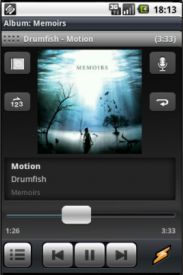
Winamp for Android Beta Available

Even though I love my HTC Evo, I still haven’t settled on a solution for listening to music or keeping my desktop music in sync with my mobile. Mostly, I listen to Pandora, which doesn’t cure my ills when I have an ear worm.

Enter Winamp. Since I have no real ties to iTunes (I’ve actually been trying to get rid of it), I think I’m going to install Winamp beta for desktop (required) and try out the beta app for Android.

After you have the desktop version installed, you can grab the beta by scanning the QR Code below with your phone or clicking the link below if you’re viewing this on your device.

Winamp Beta for Desktop

Winamp Beta for Android

via Winamp for Android: Now in Beta – Winamp Blog

How To Update All Your Social Networks Using Google Voice Actions #teamandroid

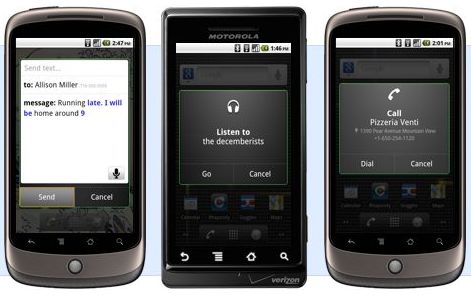
A while back, Lifehacker reminded us that Google Voice Actions can be used with any web service that supports SMS or Email. You can easily send SMS and Email messages by speaking into your phone, so any service that lets you interact via SMS and/or Email is fair game. Keep in mind that most of this also applies to Vlingo or any other voice command software.

Simple Scenario

One primary example would be Twitter. By activating your mobile phone on the Twitter home page, you can send a tweet by texting it to 40404. Combined with Google Voice Actions, you would be able to say something like “SMS Twitter, That Rahsheen guy is some kind of awesome” and GV handles the rest. Of course, this assumes you have a contact in your address book named “Twitter” with a phone number of 40404.

Kicking It Up 10 Notches

If you want to be a Social Media Mogul, you will immediately recognize that this just isn’t powerful enough. There are other worlds than Twitter and you need to be able to update them all on the go using GV. Most of you already know where I’m going with this: Ping.fm. Both a blessing and a curse, Ping.fm is a powerful tool for updating all of your social networks simultaneously.

Once logged into Ping.fm (you do have an account, right?), navigate to ping.fm/sms and save the number in your contacts as something simple like “Ping.” You want to make sure you pick a name that will be easily recognized when you say it and “Ping” works pretty well. While you’re at it, go to ping.fm/email and add your unique posting address to this contact as well.

Now, you can long-press your search button, say what you want, and broadcast to everyone everywhere. As always, feel free to leave a comment here or hit me up on Twitter (@rahsheen) if you have questions, comments, or concerns.

Simple Examples:

  • “SMS Ping, I just ate a mango”
  • “Send Email to Ping, Flipmode is the greatest”

Lifehacker Post: Use Google Voice Actions with Any Web Service that Supports SMS or Email

Formula for Resizing Media to Fit Your Blog and Why You Need It

Even if the information on your blog is good, the sheer number of visible words can get overwhelming for some. It’s not really the word count that is the problem, it’s the wall-of-text that might turn off readers. The simplest way to break things up is to add images, video, and bullet lists. Adding media can be a pain, though. Here is a simple formula for finding the right width and height for embedding media on your blog or website.

Yo, dawg...

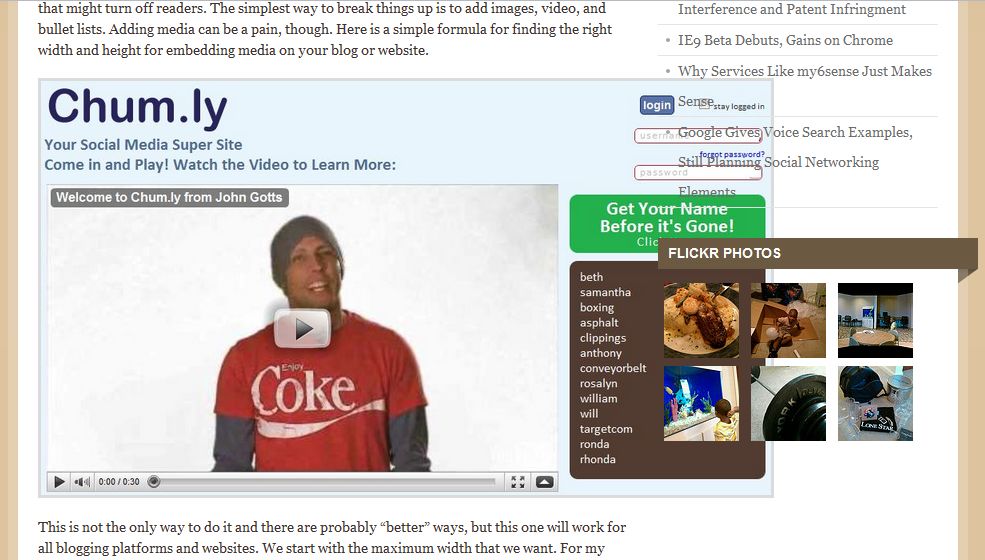
This is not the only way to do it and there are probably “better” ways, but this one will work for all blogging platforms and websites. We start with the maximum width that we want. For my blogs, it’s usually around 600px. This means that an image wider than 600px will overflow into my sidebar and make me look really unprofessional (see image above).

The Formula (Yes, it’s math)

The simple formula is based on proportions. Let’s say we have an image with a width w and a height h. We want to resize this image to a width of 605px, but we don’t know what the resulting height, x, will be we start with:

605/x = w/h

where x is the unknown height of the final image. Solving for x, we get:

x = 605*h/w

To use the formula for yourself, just replace “605” with the best width for your site, plug in the width and height for the media you’re trying to embed, and solve for x. Easy-peasy.

What to do with the results

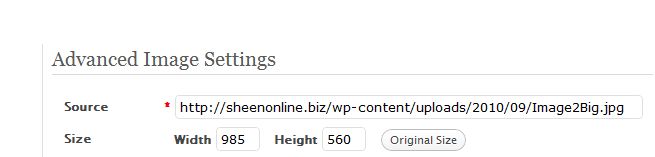
Now that you know what width and height you should resize your media to, what do you do with it? In WordPress, the procedure is to insert the image into your post first. Go ahead and choose Full Size. Click your image and click the small photo to open up its properties. On the Advanced Settings tab, you will see where you can manually specify the width and height for the image.

Why?

While you can use the percentages and presets available in WordPress to scale down your images, it’s always a guessing game. I found that I was wasting a lot of time switching between playing with the percentages and checking Preview mode. Time is money and prettying up a blog post is probably not where you want to waste your money.

Was this helpful? Subscribe to my feed. Don’t forget to add your take in the comments.

Why Services Like my6sense Just Makes Sense

This isn’t really an in-depth review of my6sense or even a post all about it, but I’m going to talk more about the concept of my6sense and why it and services like it prove valuable for many users.

The standard view of content consumption is that you go from beginning to end. You consume everything in between. This works fine for old media, but not so much online.

Reading a single blog post might be cool, but reading an entire blog could be a challenge. Reading all of the blogs you’re interested in is near impossible. So is reading your entire Twitter stream. Of course, this assumes you follow or subscribe to a decent number of sources.

One of the major mistakes people make when getting into social media is that they still want to read everything. They feel incomplete if they miss a single tweet, post, or status update. This is a recipe for madness. Twitter alone is pumping out 90 million tweets each day, 25% of which contain links. That’s a lot of content to dig through and we haven’t even got to Facebook or blogs yet.

The solution is to have someone (or something) to filter all that content for you and highlight those items that you probably want to read. Even as a blogger, I find my RSS subscriptions overwhelming and mostly not useful.

I find myself leaning more towards sites like Techmeme and Regator on a daily basis. Since m6sense (finally) became available on Android, I’ve been using it on a regular basis as well.

Why should I bother digging through the muck for pearls when there are teams of people already doing it and handing me the fruits of their labor?!

Even Twitter, a site built on users over-sharing the most boring bits of their lives, has moved to a content consumption model. They no longer care what you’re doing. They’ve realized that, outside of marketers, narcissists, and geeks, nobody understands why they should tweet. They’ve adjusted the site to focus on digging into the content already created and recommending people for you to follow.

Of course, their comes a time when these filters run dry. They’ve handed you all the pearls for the moment and now you’re bored. This is when you dig into the feeds yourself and take a closer look at some of those discarded bits. Maybe you have a (very small) list of favorite blogs by smart people. Until then, stop trying to read everything.

What tips, tricks, or tools do you use to read news?

Check out my6sense, Techmeme, and Regator. While you’re at it, read my post on the new Twitter.

4000 children die each day due to illnesses from lack of clean drinking water. Help eradicate this problem.

WaterAid America & megree are working together to bring awareness to the impact of lack of clean water has globally.
4000 children die each day due to illnesses from lack of clean drinking water.

National Geographic published a special edition in April 2010 on water.

Tina Rosenberg a Pulitzer Prize winning journalist and Lynn Johnson an award winning photo journalist wrote the article “The Burden of Thirst.”

megree has partnered with bloggersunite to help put an end to these unnecessary losses to human life.

To help raise money and build 5 clean water wells, Megree is featuring the photos from National Geographic’s “Burden of Thirst article” for sale to raise funds for WaterAid’s work.

These photos are available exclusively online with megree until October. On September 23rd, photo journalist Lynn Johnson will host a special evening at the Soho Gallery in New York City to raise funds and awareness for WaterAid. Preview the photos exclusively on megree and join this cause by visiting www.megree.com/e/3

If you are unable to attend and would like to help, please make a small donation now and add the widget and a post, if you can to your blog.

Getting Started with TweetDeck for Android

TweetDeck for Android is awesome so far. Not only is it extremely nice to look at, but it carries much of the burden of your social media life. It covers Twitter (and multiple Twitter accounts), Facebook, Google Buzz, and Foursquare. It’s one thing to say that an application covers multiple services and completely another when that application does a good job of it. TweetDeck, even in it’s beta state, handles everything surprisingly well.

Many things that you will need to get set up are not immediately clear. One major stumbling block for me was the lack of a Settings menu. It looks like TweetDeck opts to integrate the settings into the user interface.

Adding Accounts

If you already have a TweetDeck account, sign in with that and it pulls in all your other accounts.

If not, go ahead and add your Twitter account. It doesn’t matter if you hate Twitter or don’t even want to use Twitter, you can’t activate TweetDeck for Android without a Twitter account. Not sure why this is.

Once you’re done adding accounts… Uh… Hit Done.

One thing I didn’t like about the setup process is that I had to specify usernames and passwords for Foursquare and Twitter. Facebook and Buzz pop-up login windows to those sites and do seem to do some type of OAuth action.

Basics of Columns

This section is of utmost importance. Your columns are your primary method of interaction and tie into your notifications settings. Initially, you have 3 columns:

  • Home – This is everything from every service you’ve plugged into TweetDeck. The whole shebang.
  • Me – These are the posts from all your services that have something to do with you: Twitter @mentions, comments on Facebook items, etc.
  • Direct Messages – These are private messages to you from Twitter. If private messages from other services are supported, I haven’t seen any.

Each column has the relevant messages from all of your services. Instead of giving each service its own column, they’re blended together. This is a blessing and a curse. If you follow a decent number of people on Twitter, your Home stream will pretty much be useless because Twitter will bury everything else.

Hopefully, an option to create separate columns for each service is coming.

Managing Columns

Until then, you can simply use Twitter lists. I was already using Twitter lists to keep an eye on a few interesting folks, but didn’t know how to manage lists in TweetDeck for Android until @jbrotherlove gave me the heads up and directed me to the tutorial video embedded below.

If you look in Manage Columns, you won’t see an option to add anything. The only actions you can do here are to delete columns.

To add a column, you need to first find/create a column you want to add. This could be based on a search, someone’s Twitter stream, or a list. For instance, to add a column for one of my own lists, I did the following:

  • Opened a tweet with my name in it, then clicked my name. You could also just click the Contacts button (looks like a grid) and search for your Twitter username.
  • Scroll down to the bottom of your profile and you’ll see the lists you’ve created. Pick one.
  • You should see a huge button across the bottom of the screen that says “Add Column.”

Managing Notifications

TweetDeck for Android has the most basic of notifications systems. Each column will notify you when it has new tweets in it. This drove me crazy at first because I don’t need notifications on my Home feed. If you go back to Manage Columns from the main menu, you will see that each column you’ve created has an On/Off button. This button toggles notifications.

Are you using TweetDeck for Android? Sign up for the beta and share your thoughts in the comments.

Chum.ly Just Keeps Getting Better: Redesign and Feature Updates

The Chum.ly team is staying on the grind and actively responding to feedback from their growing community. This has resulted in a complete redesign of the user interface, implementation of OAuth, and an upcoming iPhone application. I have to say, the UI update is a big difference from what they were working with a couple of weeks ago and OAuth makes it that much easier to jump in and see what Chum.ly can do.

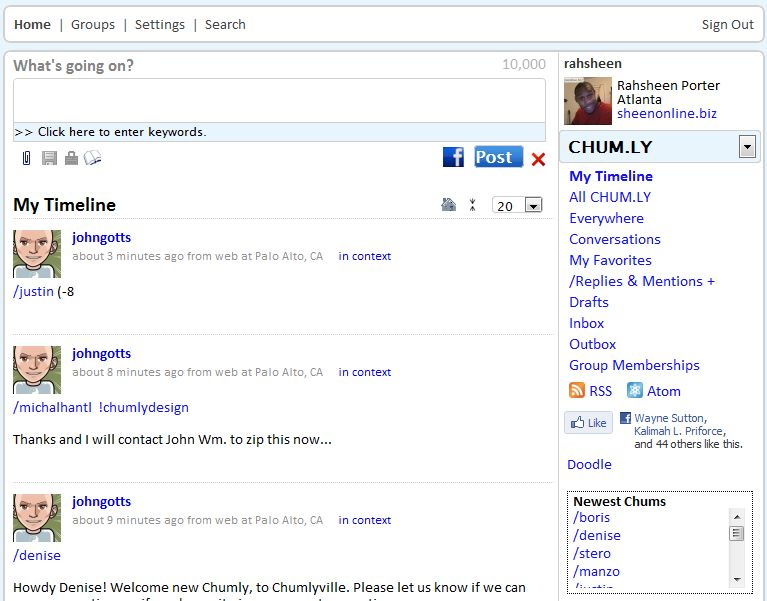
Here is Chum.ly before the redesign:

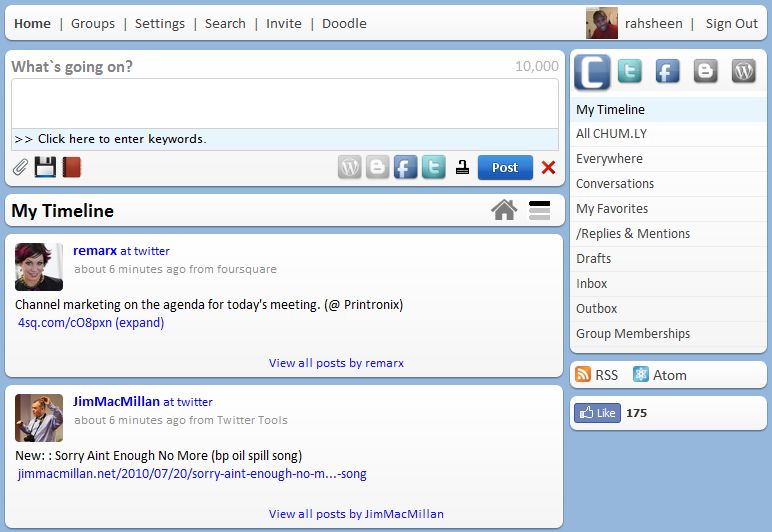
And here is the new interface:

The new interface is a lot easier on the eyes, but also makes more efficient use of space and is a little more intuitive for new users.

OAuth means you don’t have to give up your username and password for Buzz, Twitter, or Facebook. Just click a button and you authorize Chum.ly from the original site. This is a much more secure option and I applaud Chum.ly for getting it done about a day after my original post on Chum.ly.

Chum.ly no longer depends on third-party services like TweetPhoto, TwitVid, and TweetAudio to do rich media. They have moved to a simpler system where the handle media directly, eliminating the need for Chum.ly users to have a Twitter account. This is an important step in changing the perception from a Twitter or Facebook interface into a messaging platform in its own right.

Next up for Chum.ly is better integration of your Facebook account, much like what they’ve done with Twitter. There is also an iPhone app coming fast over the horizon, so keep an eye out for that. Chum.ly is definitely an advanced tool with a lot of power under the hood, but you really have to try it out to see what it can really do.

You can find me there.