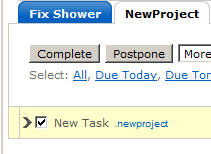
Super-Charge Remember The Milk With Smart Lists and Tags
As far as Getting Things Done goes, Remember The Milk is the center of my solar system. At first glance, it’s just a simple TODO list, but it has some serious power under the hood. Using these features, I’m going to show you how to handle most of your GTD needs in one place.
This post is the first in a series on Super-Charging Remember The Milk including:
- Smart Lists and Tags (this post)
- Remember The Milk/GTD Overview
- Six Ways to Add a Task
After reading Advanced GTD With Remember The Milk, I got inspired to upgrade my setup and handle my tasks more efficiently. I decided to do things a little different, though. Everything is handled by Smart Lists to make my life easier in the long run.
Create a List For All Your Tasks
To start, you want to create a list to hold all your tasks. I call mine “Daily.” I chose not to use “Inbox” so that I don’t get my current tasks confused with new tasks I have sent in via Twitter or email. You will never view your tasks directly using this list. It will be one big ugly list of every task that hasn’t been completed yet.
Tags Are Your Friend
Here is where my system is different. At this point, you only have 3 Lists: “Inbox”, “Daily”, and “Sent”. What you do at this point is create some Smart Lists that sort your tasks based on how you have tagged them. Here is how I tag each item:
| Tag Format | Examples |
|---|---|
| Projects start with a ‘.‘ | .PlanVacation, .Budget, .FriendFeedCommentsWidget |
| Contexts start with an ‘@‘ | @online, @home, @phone, @work, @errands |
| Status tags start with a ‘-‘ | -next, -someday, -waiting |
Project Lists
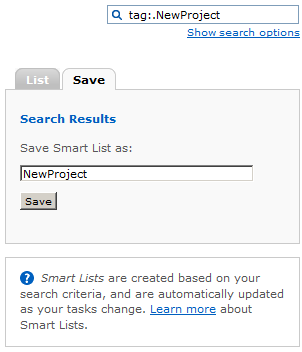
Here is where you start to see the power of this system. If I want to add a project, I simply do a search for “tag:.NewProject” and Save the search as “NewProject”, or whatever I choose. Now, I can add tasks to this Smart List and they automatically get tagged for this project. All I have to do at this point is make sure to add Status and Context tags where appropriate.
Context Lists
Our Context lists will be the main focus of the system on a daily basis. These are the lists you keep an eye on to see what you should be Doing right now. The items in these lists will only be Next items. As an example, do a search for “tag:@online AND tag:-next”. Now you have a list of all the things you can do while online that don’t have any dependencies. Go ahead and save this list as “@Online” or “@Web”.
Someday and Waiting Lists
Last, but not least, we want to go ahead and create lists for our Someday and Waiting tasks. I have a separate Smart List for each. You can create your own by saving the two searches “tag:-someday” and “tag:-waiting” as “Someday” and “Waiting”.
Example Smart Lists
Here are the Smart Lists I currently use. Notice that they all include “tag:-next” to show me only my Next actions:
| Smart List Name | Search Query |
|---|---|
| @Errands | tag:-next AND tag:@errands |
| @Online | tag:-next AND tag:@online |
| @Phone | tag:-next AND tag:@phone |
Putting It All Together
The work flow for GTD is Collect, Process, Organize, Review, Do.
- Collect by doing a brain dump. Add anything you think may be of importance as a task in Remember The Milk. If you already know the Context, Project, and/or Status for this item, tag it now. The shortcut key for adding a task is “T”. Once you add a task, it will automatically be selected so that you can hit “S” to edit the tags.
- Process any tasks you have not already tagged. If the task has no dependencies, tag it with “-next.” If it’s part of a larger project (even a project you may not have created yet) tag it as such and create a Smart List for it. Break the task down into smaller tasks, tagging each with Context and Status tags where applicable.
- Organizing your tasks should be done by this point. Keep in mind that you can always modify multiple tasks at the same time by turning on multi-edit mode with shortcut key “M”. This is good if you have a bunch of tasks that need the same tag added.
- Review each project to make sure you haven’t left any tasks out or forgotten to tag any of them with “-next.”
- Do whatever you have to do to get rid of all those tasks in your Context lists. Only look at your project lists if you have run out of Next actions for that project.
Final Notes
- Every Task may not fall into a specific project
- Every Project does not have to be a list of Tasks towards any specific goal. I have projects of things I need to Review, Read, Write, Research, etc.
- Don’t get ridiculous with Contexts. Keep it simple and don’t agonize over tasks that may or may not have to go in a specific context, or could possibly go in more than one context (ie. writing a blog post could be @laptop or @online or both, or neither). Just pick one and run with it. Nothing bad will happen.
Bonus Tip
What happens if you forget to tag things properly? Use this search as a sanity check:
NOT tagContains:@ or NOT tagContains:. OR isTagged:false
This will catch anything that’s not part of a Project, Context, or just isn’t tagged at all
Do you have any tips on Getting Things Done or Remember The Milk? What do you think of this system? Let me know in the comments.


Here's a silly question. When you say above, “To start, you want to create a list to hold all your tasks.” do you mean a *Smart* List?
RTM has Help topics on how to create a Smart List but I see none for how to create a “List”.
Apologies if it is obvious. I've just joined RTM today but no where do I see any way on RTM to “create a list”.
Thx
Sorry. Found it…in “Settings” of all places.
I'm sorry, I was not clear in this case. To clear up any confusion, I just
meant to create a regular basic List. You will find the option for this by
going to “Settings” in the top-right menu, clicking on “Lists” and then you
can click “+add list”.
This step is just to have somewhere to put all your items besides Inbox. Any
task you send to RTM, via email or otherwise, will go to your Inbox by
default, so you want to keep Inbox clear to avoid confusion.
You will find more information about adding tasks remotely in these two
posts:
Supercharge Remember The Milk: 6 Ways to Add a Task
Remember The Milk: Posting Directly from Your Desktop
Stellar. Thank you
Just talking about your average, basic list.
To create a new one, go to “Settings” and then “Lists”
What happens if you forget to tag things properly? Use this search as a sanity check:
NOT tagContains:@ or NOT tagContains:. OR isTagged:false
This will catch anything that’s not part of a Project, Context, or just isn’t tagged at all
These tag searches don't work.
While RTM is nice, I prefer Wipee List: http://wipeelist.com/
your system is awesome. I hope at least this should make me punctual now.
Great stuff…I need to get organized and will have to add this system.
Adding status tags screwed me up for weeks!
Really? That's odd. What, exactly, happened?
One big benefit of physical locations comes into play with RTM's new iPhone app. You can show tasks that are specific to your present location if you set your locations up. Not sure if it's actually any faster or more useful, but for sheer neato-ness it's fairly cool.
Sorry about that! Not sure if it got messed during my various theme upgrades
or if I just had no clue how to properly post images back then. I'll fix
ASAP. Thanks for stopping by and I appreciate the awesome image
Great post – thanks!
I'm confused about how the “daily” list can contain all tasks.
If you add tasks while in a Smart List, they automatically get tagged as appropriate. But how do they also show up in the “daily” list? Is it because the “daily” list is the only one you have set up?
I manually move the tasks from Inbox to Daily. It's not really a necessary
step, though. It just helps to keep tasks you have sent yourself via
email/twitter etc. separate from everything else.
make “and list:Daily” a part of the search criteria for your smart list and you won't have to move them from the inbox. They will go in the daily list automatically.
Very nice setup. I actually changed mine (static lists with smart lists for context to yours which is more versatile. One question: what do you do with (project-) tasks which are not next actions. To keep things easy they shouldn't have any satuts so they will get caught by accident by your NOT tagContains:@ or NOT tagContains:. OR isTagged:false search. Don't you have these? Or is everything which isn't -next or -waiting automatically a Someday task?
Thanks a lot in advance!
Anything that is part of a project shouldn't get caught in that filter
because of the “.projectname” tag. Pretty much, as long as you assign
an “@context,” you should be fine.
I think i haven't been clear enough. Of course I have lots of single tasks that don't belong to any project so they are missing a .projectname tag and, as long as they aren't -next and no context is assigned (I assign the context when the task gets a next action because the context might change until that point; this might be the differrence in out workflows) they are caught by that filter.
Second I worry about tasks that do have a .project tag but have a typo in the project name. As long as you dont' check for tasks not being at the project or single actions lists you will loose them in my eyes because theyre only in the UglyCollection- list. This seems to be one dissadvantage in the use of the smartsearch projectlists
Oh! Ok. I see what you mean. The ultimate goal is that nothing is
caught by the “ugly list.” Part of an effective GTD system is that you
know when you can do something and you know where you have to be to
accomplish it. For instance, I know I need to be @online to update my
blog, @grocery to pick up the milk, or @work to fire my boss. If I'm
not -waiting on someone or -someday in order to complete a task, it
must be a -next action. The “ugly list” is really just to catch your
mistakes
OK we seem to have a different understanding about task status
In .drinkcoffee
-make coffee
-take milk from fridge
-pour coffee
-establish your own coffeeshop
for me “take milk” is not -someday and it's not -next. I'd call “establish coffeeshop” -someday because it will be really done someday. “Take milk” is also not -waiting because this would produce too many tasks on my waiting list (actually would be 250!)
So quintessence seems to be:
-to get the system waterproof every task must have a status. Otherwise tasks could be missed. Therefore I need something like -later. I better not check tagContains:- to be sure status is valid. Better (but less “dynamic”): tag:-next OR tag:-waiting….
-Further every task that is next needs a context. And it needs to have a valid context which is not sure using the above smartlist, right? I already have a check that searches -next tasks not being on a contextlist
-the last chance to loose tasks is wrong spelling of project tags. I actually don't have an idea how to catch these. So I have to be carefull with the .project tags (e.g. only assign these by entering the tasks directly into contextlists (does move to smartlist change tags? This would be marvellous! I'll test it)
Actually, every task should have a context. That's how I keep them
from getting lost. I actually place contexts and projects on the same
level as far as keeping the system water tight. For instance, in the
example you post, all of these tasks would be tagged with
“.drinkcoffee” as their project, which would keep them out of the ugly
filter. The same goes for any task that actually has an @context.
As far as misspelling stuff, I take heavy advantage of RTM's
auto-complete. Even if I know what tags I want, I click them off from
the auto-complete drop down list. When I'm on the go adding tasks via
email and such, I don't usually bother trying to tag them at that
time, I just wait until I get back to a browser (I don't have the net
on my phone) so that I can tag them properly. Creating the tasks in
the actual smart list where they belong is another fail-safe.
OK we seem to have a different understanding about task status
In .drinkcoffee
-make coffee
-take milk from fridge
-pour coffee
-establish your own coffeeshop
for me “take milk” is not -someday and it's not -next. I'd call “establish coffeeshop” -someday because it will be really done someday. “Take milk” is also not -waiting because this would produce too many tasks on my waiting list (actually would be 250!)
So quintessence seems to be:
-to get the system waterproof every task must have a status. Otherwise tasks could be missed. Therefore I need something like -later. I better not check tagContains:- to be sure status is valid. Better (but less “dynamic”): tag:-next OR tag:-waiting….
-Further every task that is next needs a context. And it needs to have a valid context which is not sure using the above smartlist, right? I already have a check that searches -next tasks not being on a contextlist
-the last chance to loose tasks is wrong spelling of project tags. I actually don't have an idea how to catch these. So I have to be carefull with the .project tags (e.g. only assign these by entering the tasks directly into contextlists (does move to smartlist change tags? This would be marvellous! I'll test it)
Actually, every task should have a context. That's how I keep them
from getting lost. I actually place contexts and projects on the same
level as far as keeping the system water tight. For instance, in the
example you post, all of these tasks would be tagged with
“.drinkcoffee” as their project, which would keep them out of the ugly
filter. The same goes for any task that actually has an @context.
As far as misspelling stuff, I take heavy advantage of RTM's
auto-complete. Even if I know what tags I want, I click them off from
the auto-complete drop down list. When I'm on the go adding tasks via
email and such, I don't usually bother trying to tag them at that
time, I just wait until I get back to a browser (I don't have the net
on my phone) so that I can tag them properly. Creating the tasks in
the actual smart list where they belong is another fail-safe.
This is awesome. But why do I need the “.” prefix? Seems like you never use normal tags, without prefixes. The other ones keeps contexts and statuses nicely apart from the project list, but then projects are sorted alphabetically anyway, so why do I need that dot?
Thanks.
The dot isn't absolutely necessary for the smart list names
themselves. I just did it that way for consistency, I guess.